
Available Software
Special Licenses
If you are asked to sign in to software, you much use your @berkeley.edu address to get the campus license.
Google Suite – Our email is managed by Google. Access is linked to your Calnet ID and your employment status. Accounts are never deleted, but content is deleted one year after leaving the University. Speak to the Alumni Association or Retirement Center to keep Google Suite access.
Note – since accounts are never deleted, if you were on campus at one point, leave for 15 years, then come back, you will still have the same email and Calnet login.
LastPass Premium and LastPass Enterprise – LastPass is a password management tool that securely manages your passwords in an online vault. The campus offers free Premium accounts to users and free Enterprise Accounts to Departments. Enterprise accounts allow for “for storing institutional account information”, where multiple users can access the same password vault. We have a few already setup, so please contact Anna Maurer (annam@berkeley.edu) if you wish to use LastPass Enterprise.
Adobe Creative Cloud (including Acrobat Pro) – Every year the campus will ask all persons to “sign up” for an Adobe license, and will only grant access to those who do so. Please review instructions here.
Microsoft Office – Upon first use, please “Sign in” with your @berkeley.edu address.
Tessitura (our central Customer Relationship Management (CRM) system; used for ticket sales and program registration) – Please contact Janet Herrington (herrington@berkeley.edu) for information.
Berkeley Computers
The standard Berkeley Image on staff computers includes Office and Chrome. It also includes a special program that allows staff to install other software without needing an admin account.
PC – use BigFix
Mac – use Self Service
If you are asked for an Admin Account to complete an install, please check with BigFix/Self Service to see if you can complete the process there. If not, please contact ITCS at itcshelp@berkeley.edu.
The standard Berkeley image does not include the Ricoh Printer Drivers, so please make an appointment with Anna Maurer (annam@berkeley.edu) to get your Printers setup.
Personal Computers
Staff are permitted to use campus software on personal computers. The list of available software is at https://software.berkeley.edu/. Please note that not all software is available to all classification – Eligibility List.
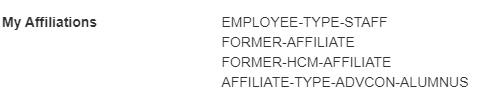
To check what CalNet Affiliations you have, login to the Calnet Account Manager site. You will see your affiliations. These are controlled at the HR level.
How to use….
Zoom
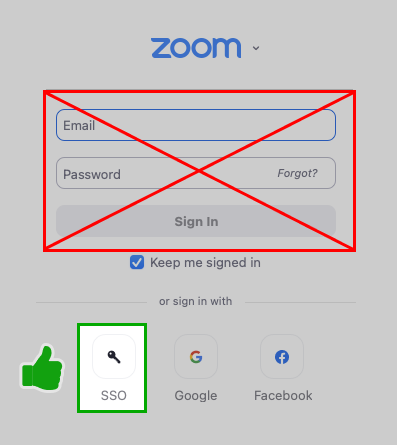
Campus Zoom accounts require you to login with your Calnet login at least every 90 days. If you use the Desktop app, the login process is a bit different (from this article):
Choose the SSO link at the bottom:
Enter “berkeley” in the indicated field:
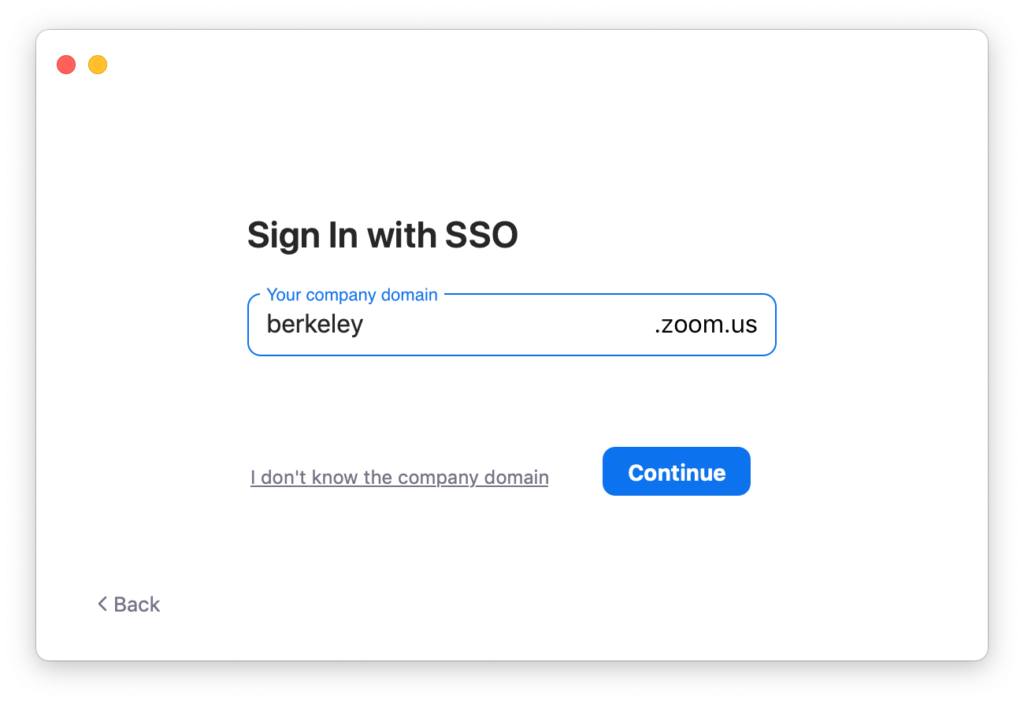
Clicking the Continue button will take you to the normal Calnet login screen.
To update Zoom, use the Self Service/BigFix application – this has admin access built in.
All Apps
The following apps are available in a web browser and can be accessed via the Google Apps menu (the nine dot square) on bMail/bCal sites. Although access is to various Google and other sites, you are automatically logged into your Berkeley Account. Thus, accessing the “Gmail” app this way takes you to your .berkeley.edu account, not your .gmail.com account.

- Account
- Gmail – Email
- Drive
- Docs – subset of Drive files
- Sheets – subset of Drive files
- Slides – subset of Drive files
- Calendar – The Lawrence relies on up to date calendars
- Chat – Messaging app we use
- Meet
- Forms – subset of Drive files
- Currents
- Sites
- ————–
- Contacts
- Groups
- Youtube
- Maps
- News
- Photos
- Translate
- Hangouts – Old name for Chat
- Keep
- Jamboard
- Earth
- Saved
- Travel
- —————
- bCourses
- Box
- CalShare
- CloudPrint