Managing Drive Files
Tips and tricks on making sure Department Files are owned by the department!
Gotchas
Key facts to know about Drive and how it works. This is specific to Personal Drives, not Shared Drives.
- Drives are personal to YOU only. No one else can access your Drive. Not IT, not the Chief Security Officer, not the Chancellor.
- Drive permission changes do NOT cascade down through folders. Changing ownership of a folder does NOT automatically change ownership to all sub folders and sub files.
- A Drive folder can have 10 subfolders, each with 10 files, and subfolders of their own, and every single item can have a different owner and list of collaborators.
- You can only Move a folder and its contents to a Shared Drive if you own that folder and everything in it. See above bullet point. Otherwise, you need special short term limited Admin Rights.
- A file or folder only has one owner, regardless of who has access. If that owner is no longer available to transfer ownership, the file/folder is at risk for deletion.
- From campus: “We can’t take admin action on single files or folders on any person’s behalf, those actions all have to be done by the customers.”
Drive Limitations
- You can only transfer ownership of 800-100 files per day, depending on size. The closer you get to this number, the slower the process takes. When you hit the limit, you are blocked from further ownership transfers for 24 hrs.
Ownership Transfer
- You can only transfer ownership of a file to someone who is already an Editor.
- Moving files to Shared Drives is preferable to Ownership transfer. One less step!
Moving files to a Shared Drive – EVEN IF YOU DON’T OWN THEM
You can move files to a Shared Drive, even if you don’t own them, and/or the “owner” is no longer here.
- The criteria are that all files must be owned by an @berkeley.edu account, otherwise they’ll fail.
- You must be an editor on all content you’re trying to move.
Tips and Tricks
SPA Ownership
- Make sure the SPA is an Editor on all folders, subfolders, files FIRST.
- Transfer ownership of all folders and subfolders FIRST. Then do files.
Shared Drive Ownership – Preferred
- Shared Drive size – make the Shared Drive first, then request an extension to 150GB here.
- For moving “folders and all their contents”, request admin access here. This will be granted for a limited time.
- It is unclear whether the collaborator list is completely replaced by the Shared Drive Member List, or if the two lists are combined.
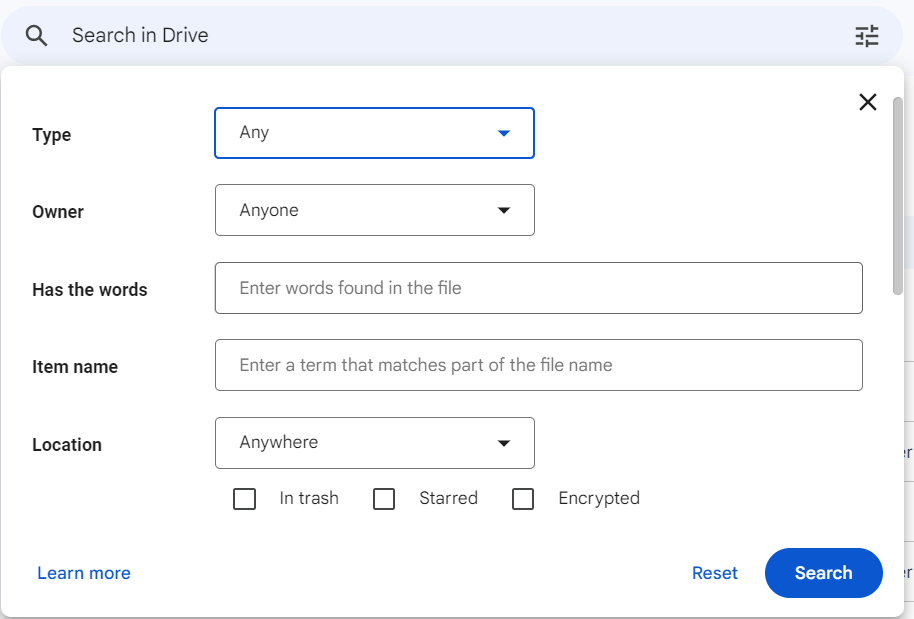
Google Filters to find stuff (referencing Screen Shot below) – Expect to run filters several times as it often resets.
Type – PDFs, Documents, Spreadsheets, etc. Good for making the list a bit smaller!
Owner – Anyone, Owned by Me, Not Owned by Me, Specific Person. The latter three are useful, but I found that you need to constantly refresh/reload the list.
Has the words – Does not search by title.
Item name – best when you know the exact name, but I found the Owner filter to be more useful.
Location – My Drive, Shared with Me, other. Very useful.
Modified – (under screen shot) useful to limit list.
Useful commands to enter in the “Search in Drive” field.
Finding orphans – “is:unorganized owner:me”
Finding files shared with specific people – “sharedwith:bob@gmail.com” Note: This did not really work for me. I think it was looking to match the ENTIRE share list, so looking for just “one” person/SPA really didn’t work.